There are so many fun and engaging apps you can use in the classroom to enhance your students’ learning! The only downside to having so many tools available is knowing which ones to try out. A lot of apps are great for teachers and older kids, but it can sometimes be a bit challenging to find apps that are age-appropriate for primary students.
PicCollage definitely fits the bill! I use this tool regularly with my little learners. It’s a fantastic brainstorming tool that’s quick and easy to use. There are tons of ways you can use PicCollage with your students, but for now, I’ll share my top 5 ways to use PicCollage in the classroom.
There are so many educational apps available today that it can feel overwhelming to decide which ones are actually worth your time.
Many tools are designed for older students. Others require complicated logins, too much setup, or features that aren’t developmentally appropriate for primary learners.
If you’re looking for a simple, creative app that kindergarten, first, and second graders can use independently, PicCollage EDU is one of my favorites.
It’s easy to learn, flexible across subjects, and perfect for centers, small groups, and whole-class projects.
Here’s how it works — and five practical ways to use it in your K–2 classroom.
What Is PicCollage EDU?
PicCollage EDU is a classroom-friendly version of the popular PicCollage app.
Students can:
- Add photos
- Insert text boxes
- Use stickers and shapes
- Choose backgrounds
- Arrange images into a collage format
The layout is very intuitive. Most primary students pick it up quickly with minimal instruction.
The EDU version is specifically designed for schools:
- No student accounts required
- No social sharing
- No ads
- Privacy-friendly
Students’ creations save directly to the device, making it easy to:
- AirDrop to you
- Upload to Seesaw
- Share in Google Classroom
- Print for bulletin boards
It’s simple, creative, and manageable.
5 Practical Ways to Use PicCollage in Your K–2 Classroom
1. Digital Story Summaries (SWBST or Story Maps)
In the photo with A Brave Frog, students are using a structured summary format (Somebody, Wanted, But, So, Then).
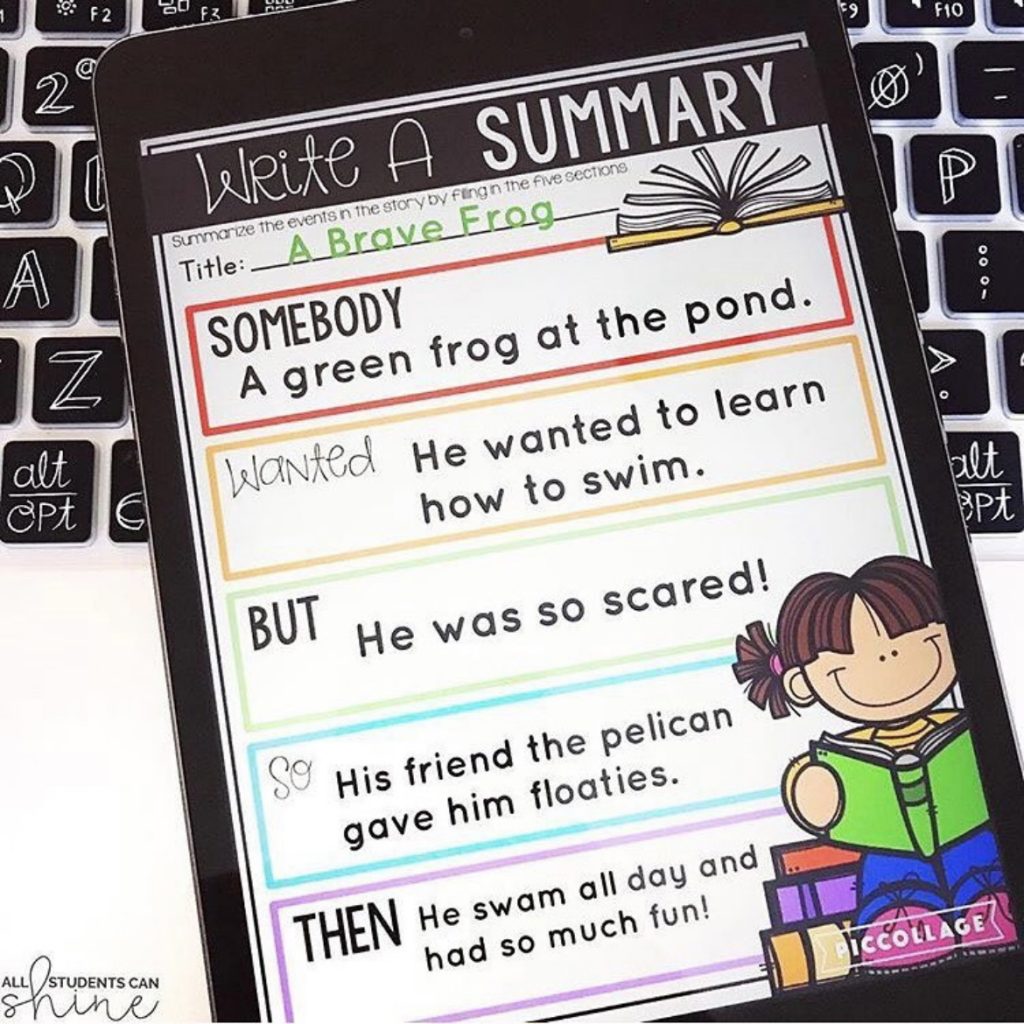
PicCollage works beautifully for this because students can:
- Add the book title at the top
- Insert text boxes for each part of the summary
- Include a picture of the book cover
- Organize their thinking in clear sections
This is especially helpful for students who struggle with organizing written responses. The visual layout supports comprehension and keeps their summary structured.
You can easily adapt this for:
Character traits with evidence
Beginning, middle, end
Problem and solution
2. Science Research & Informational Writing
In the frog and plant examples, students are organizing facts with labeled images and short informational statements.
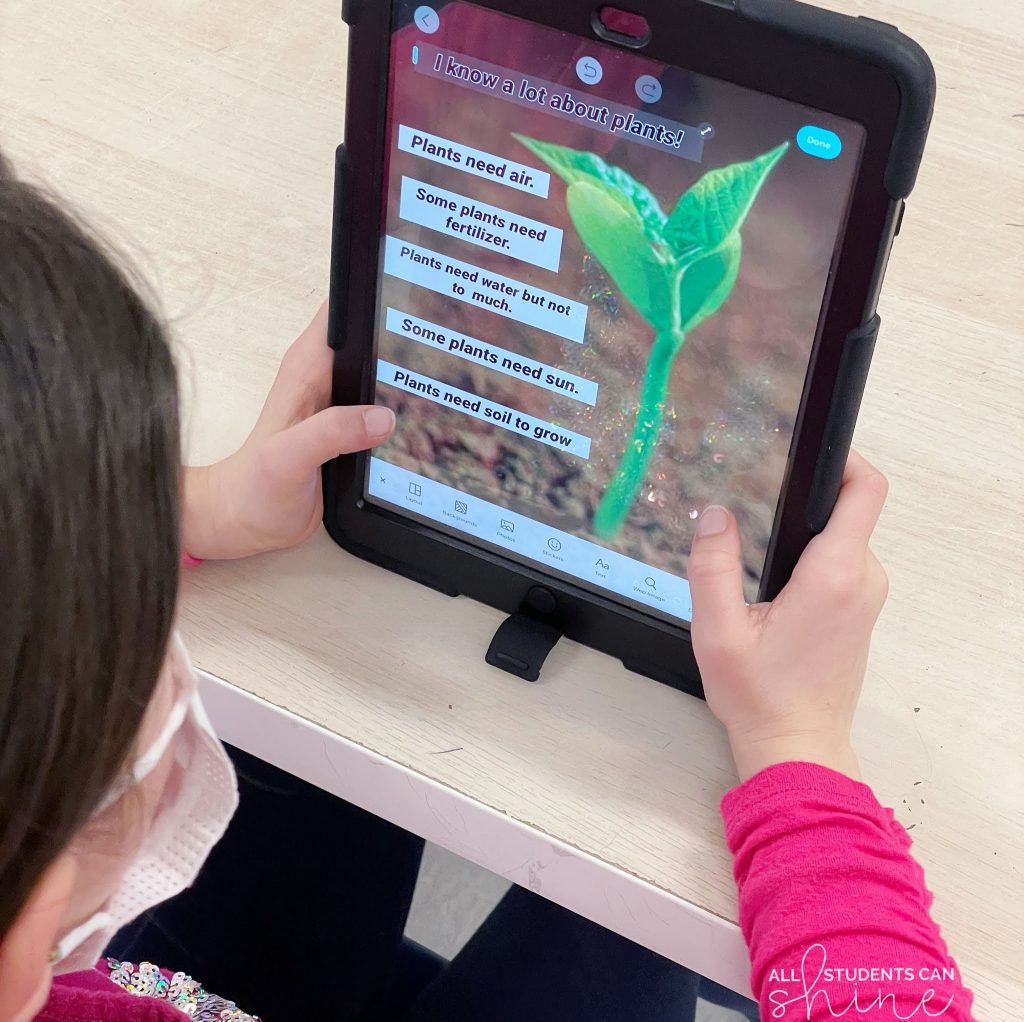
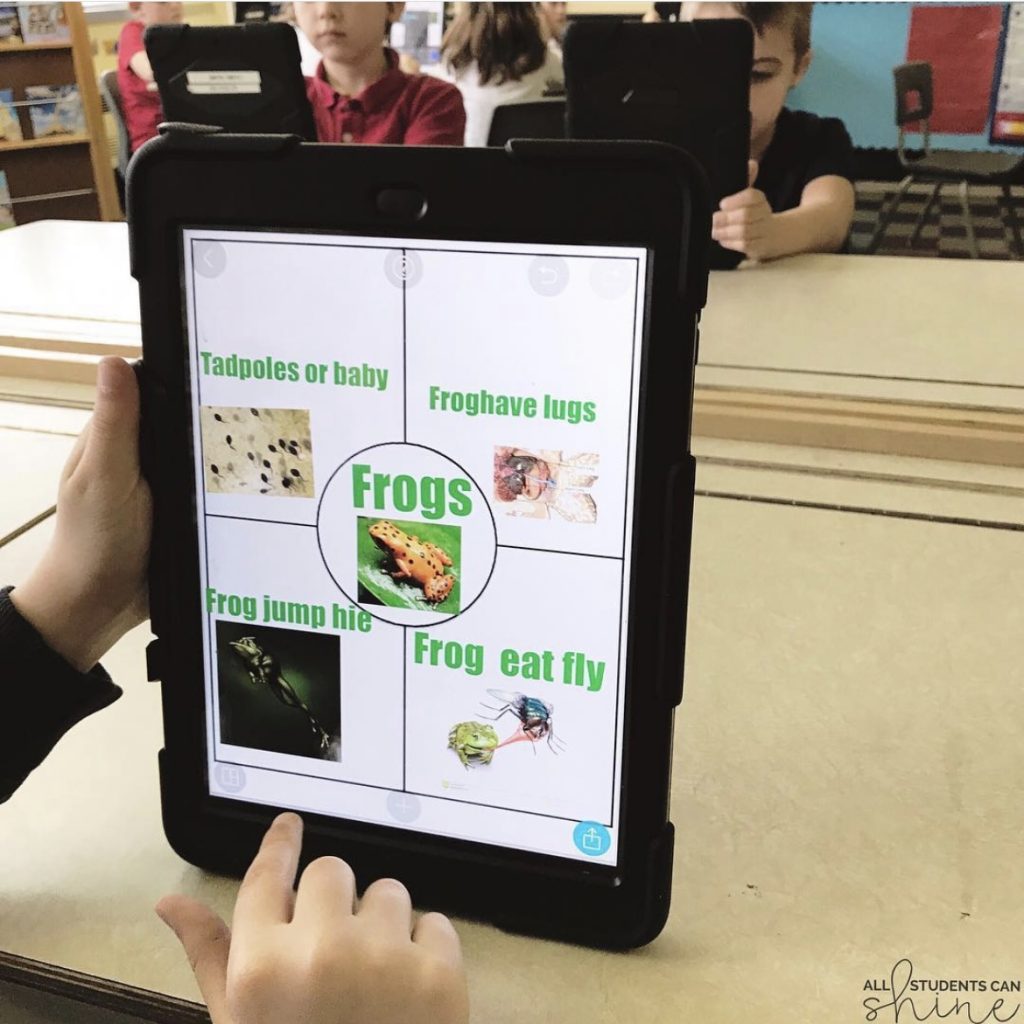
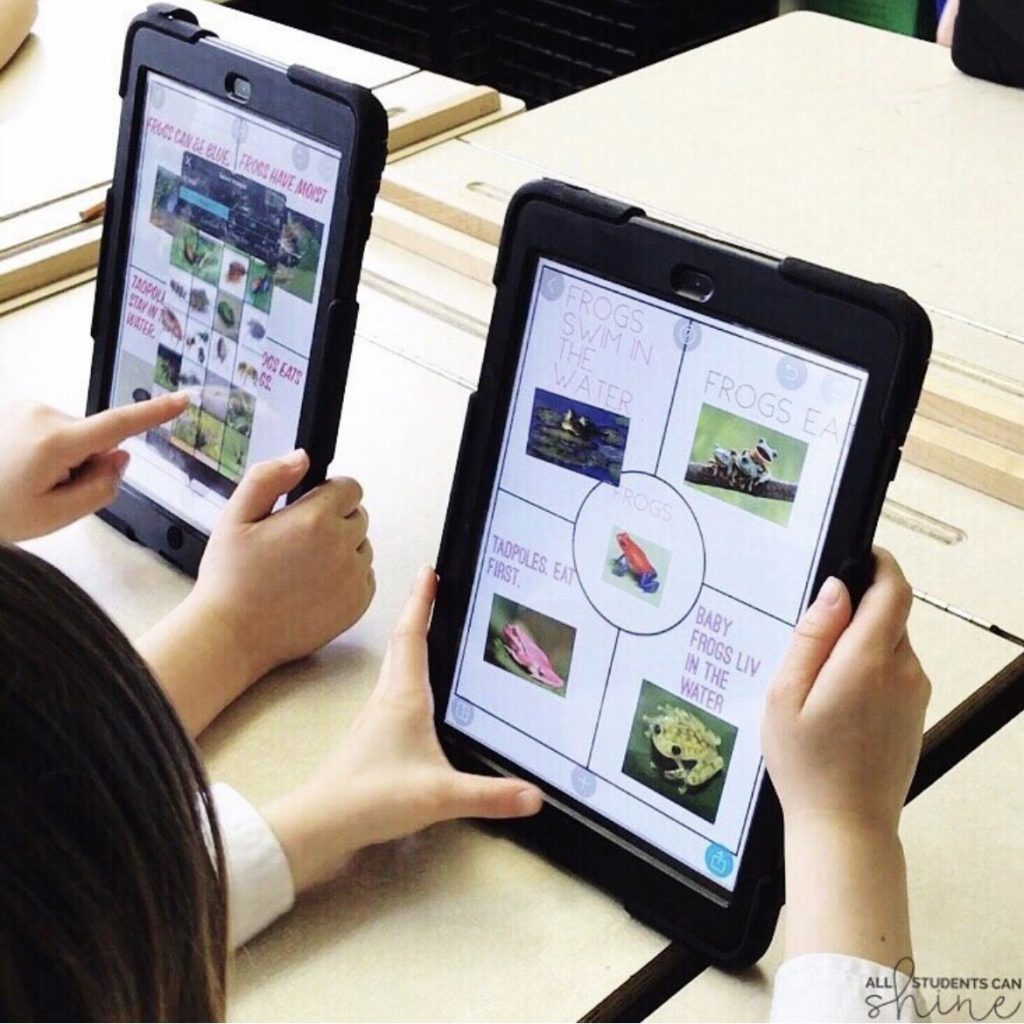
This is perfect for:
- Animal research
- Plant life cycles
- Habitats
- Weather units
- Community helpers
Students can:
- Insert real images
- Add labeled facts around a central topic
- Create simple informational posters
This format supports early research skills and helps students learn how to organize nonfiction information visually.
Bonus: These make excellent digital science projects to share with families.
3. Vocabulary and Themed Word Collections
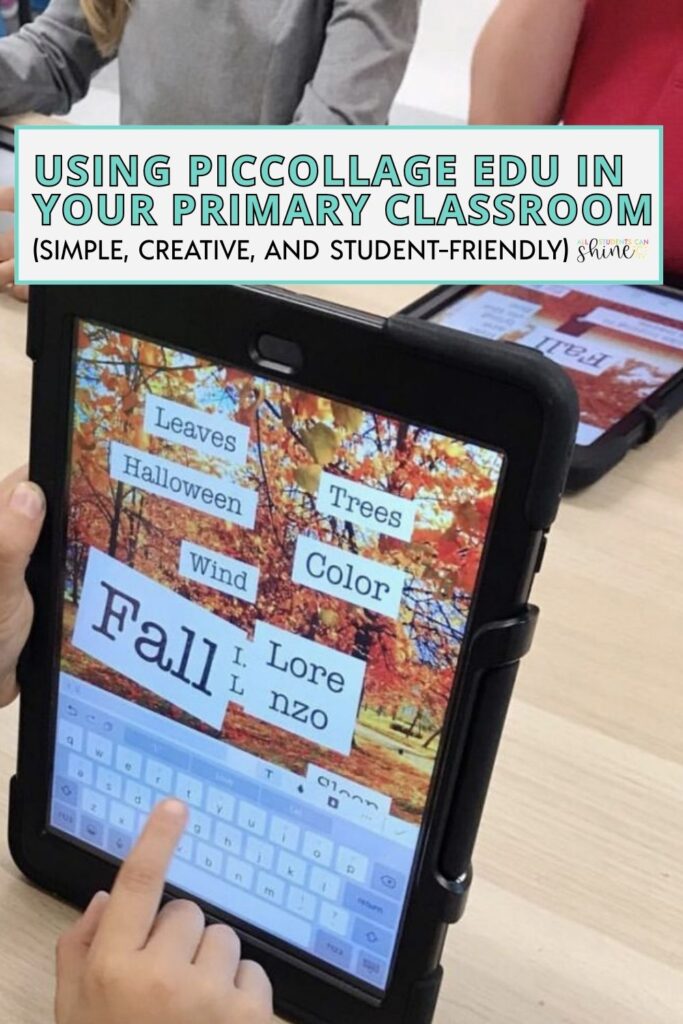
The fall vocabulary collage is a great example of how PicCollage supports language development.
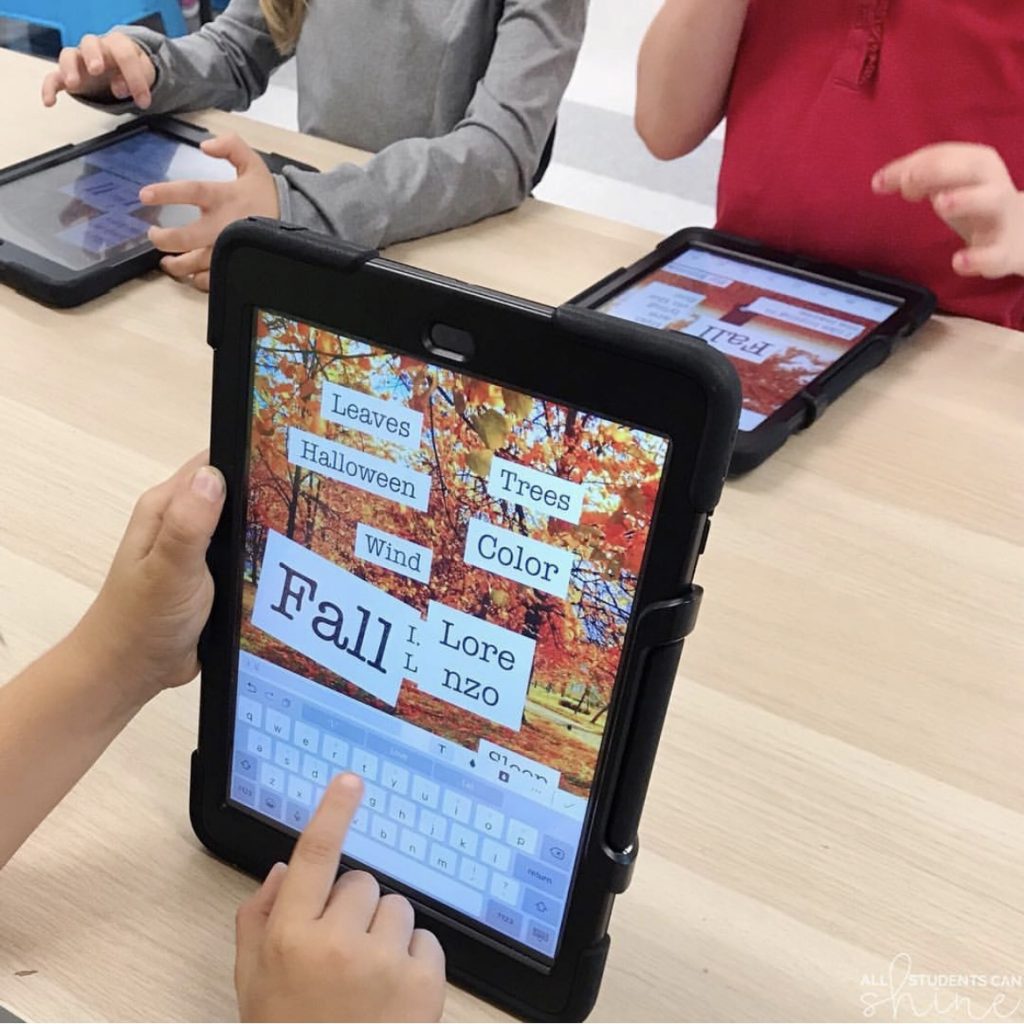
Students can:
- Add themed background images
- Insert vocabulary words
- Group related words together
- Type simple sentences using new words
You can use this for:
- Seasonal vocabulary
- Unit-specific words
- Adjectives
- Synonyms
- Content-area vocabulary
Instead of copying definitions, students build meaning through visuals and word connections.
4. Digital Writing Projects
The “My Scary Monster” example shows how engaging digital writing can be.
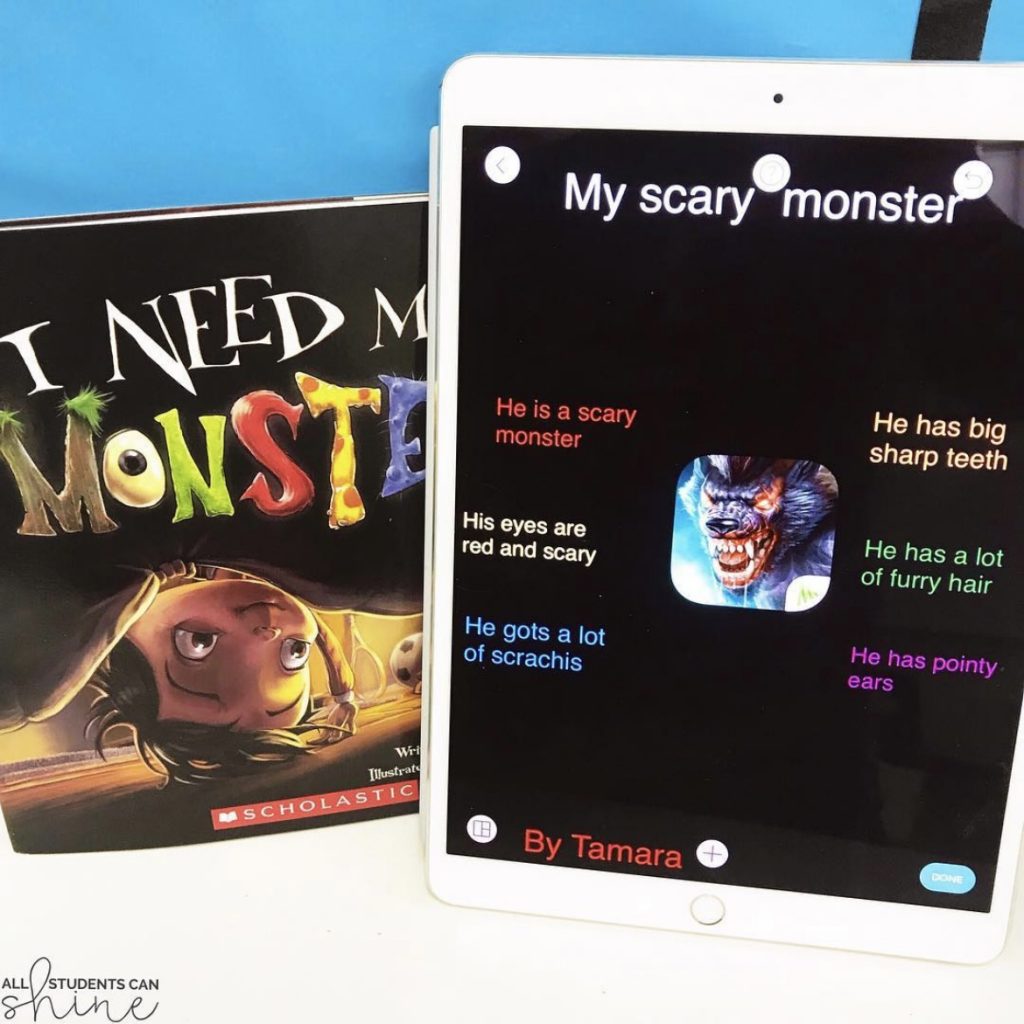
Students can:
- Write descriptive sentences
- Add a central image
- Use different colors for details
- Include a title and author name
This works well for:
- Narrative writing
- Opinion pieces
- Descriptive paragraphs
- All About books
For reluctant writers, typing can feel less intimidating than filling a full sheet of paper. The design element also increases motivation.
5. Math Concept Practice (With Visual Models)
These telling time examples are a strong example of using PicCollage in math.
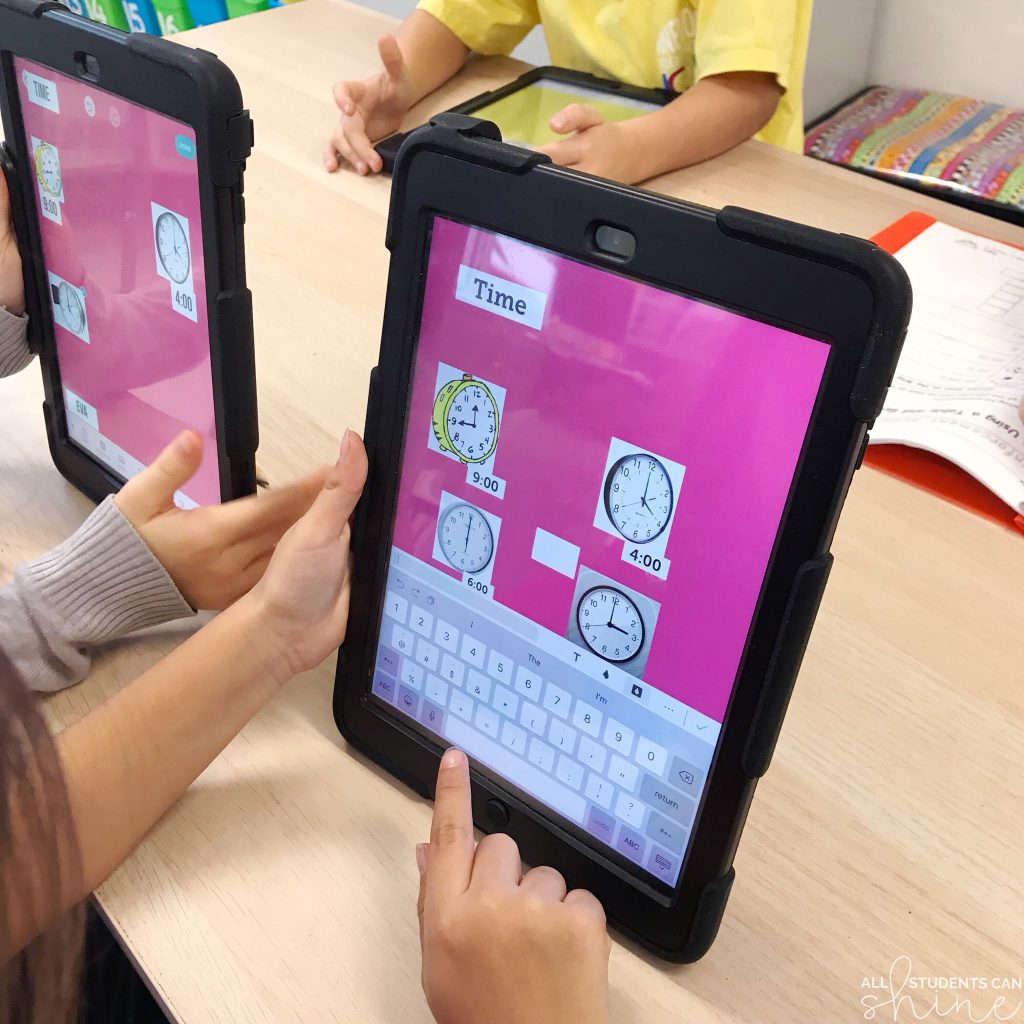
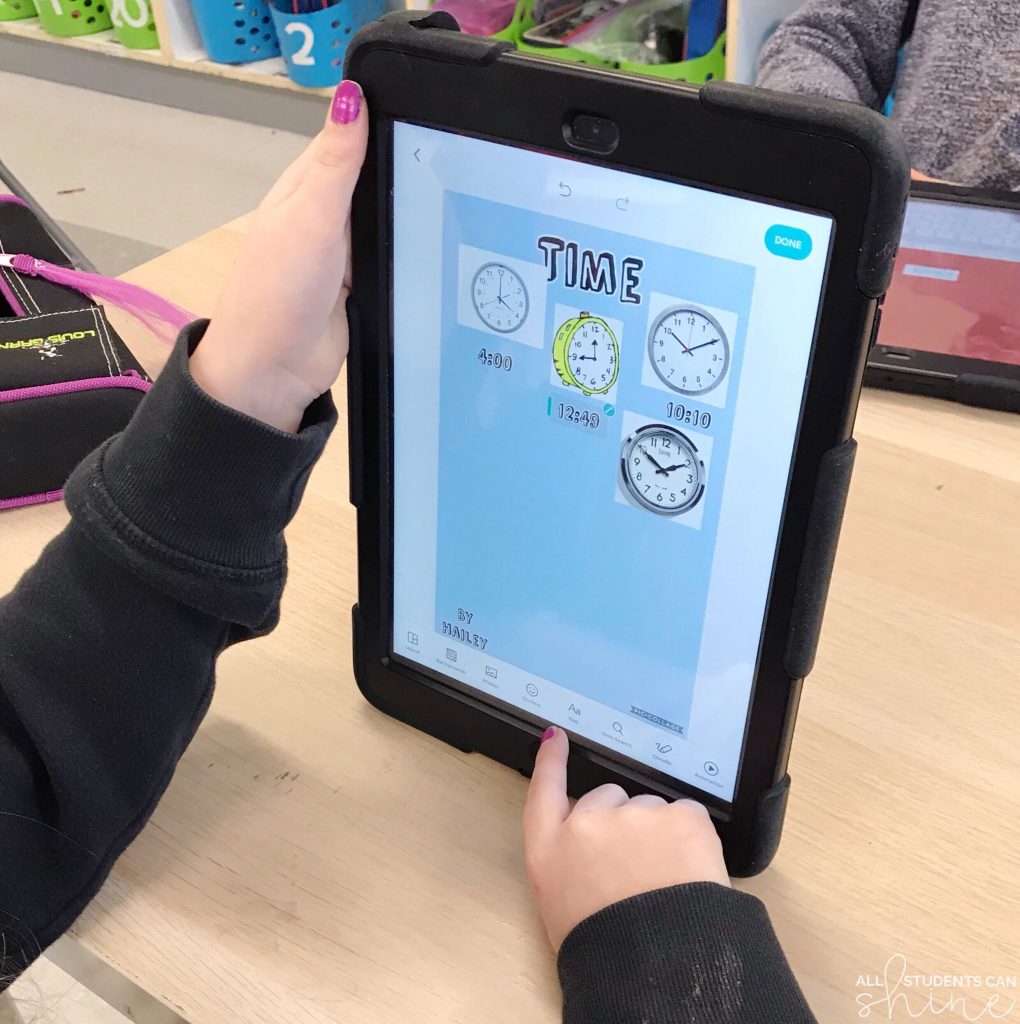
Students can:
- Insert clock images
- Type the matching digital time
- Create their own “Time” poster
- Photograph manipulatives to model addition or place value
Instead of completing a worksheet, students are building visual math models.
Tips for Getting the Most Out of PicCollage EDU
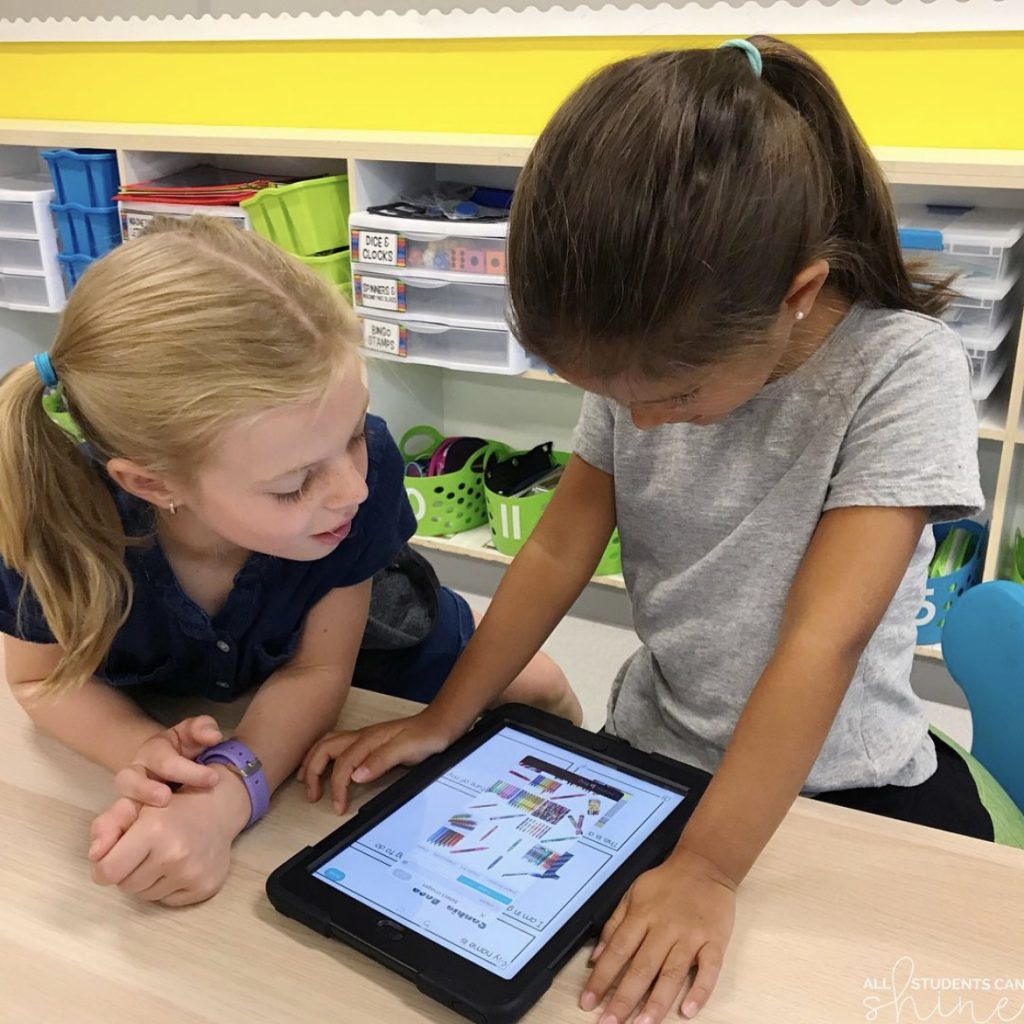
1. Use “Tech Experts”
Even though the app is user-friendly, small tech issues can pop up.
Assign 1–2 student “experts” during work time.
Important rule:
Experts may guide with their voice only. They may not touch another student’s device.
Some students literally put their hands behind their backs while helping — and they love the responsibility.
This builds independence and reduces interruptions.
2. Keep Expectations Clear
Before starting, model:
- How to resize images
- How to delete items
- How to save work
- How to clean up the layout
Just like any center, practice the routine first.
3. Connect to Digital Portfolios
Have students upload their finished work to:
- Seesaw
- Class Dojo
- Google Classroom
Parents love seeing digital creations, and students feel proud sharing their work.
It also gives you quick documentation of learning.
Digital Graphic Organizers for PicCollage
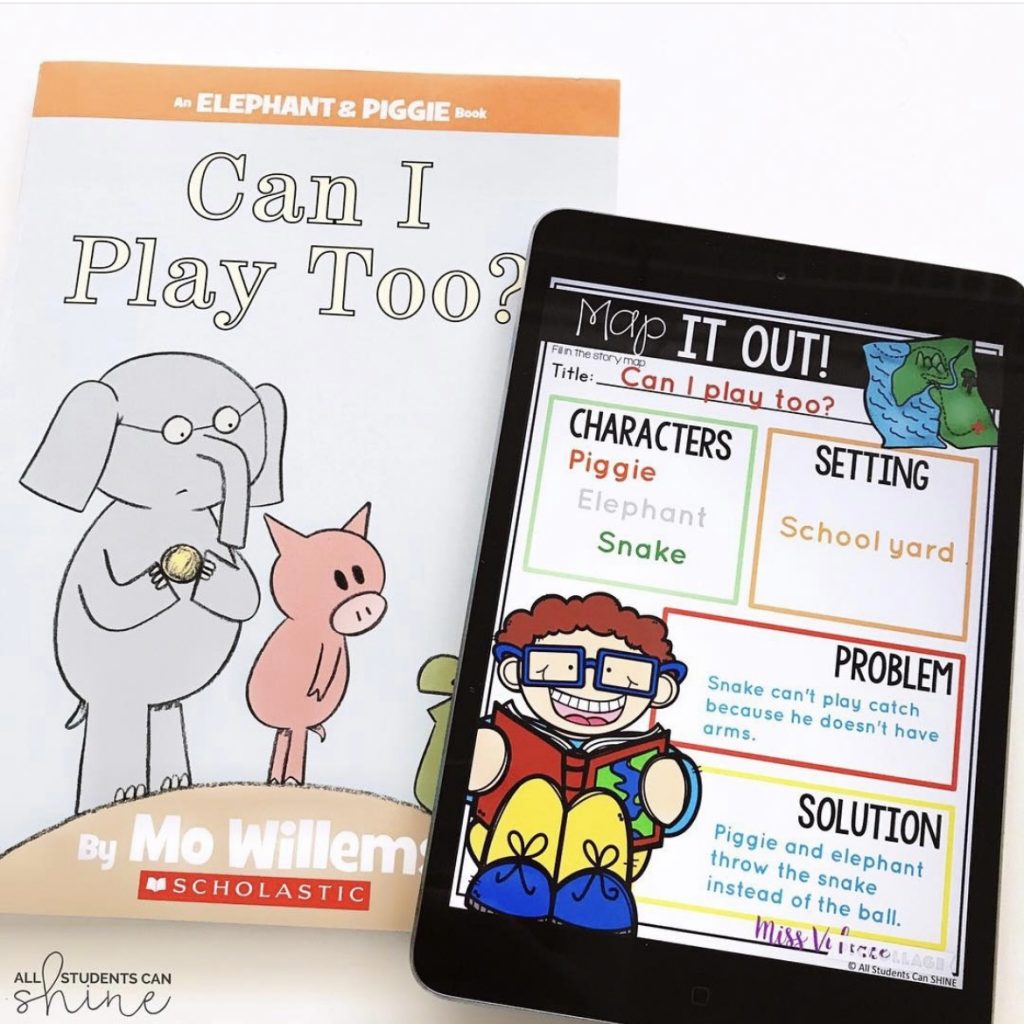
While PicCollage includes ready-made backgrounds, I like using structured graphic organizers to keep students focused on the academic goal.
I created digital templates that students can fill in directly on their devices.
These include 19 different organizers such as:
- Ask Good Questions
- Story Characters
- Make a Prediction
- Story Sequencing
- Making Connections
- Making Inferences
- Important Facts
- New Vocabulary
- I Know All About
These templates provide structure while still allowing creativity.
If you’d like to try it out, grab the free story map template to see how it works in your classroom.
Why PicCollage EDU Works So Well in Primary Grades
It’s:
- Simple to use
- Developmentally appropriate
- Flexible across subjects
- Easy to share with families
- Perfect for centers or small groups
Most importantly, it encourages students to create rather than just consume digital content.
If you’re looking for a tech tool that supports literacy, math, and vocabulary while staying manageable for K–2 learners, PicCollage EDU is a great place to start.
Try the free template, and then let me know how you’re using PicCollage in your classroom.